How Do I Tell What Version Of Directx I Have
So, you wanna know how to tell what version of DirectX you have? Well, let me tell you, it's easier than trying to get your cat to take a selfie with you (good luck with that,...
So, you wanna know how to tell what version of DirectX you have? Well, let me tell you, it's easier than trying to get your cat to take a selfie with you (good luck with that, by the way)!
All jokes aside, checking your DirectX version is a simple process that can be done in just a few clicks. First, you'll want to open the Run dialog box by pressing the Windows key + R on your keyboard. Then, type in "dxdiag" and press Enter. This will launch the DirectX Diagnostic Tool, which will give you all the deets on your DirectX version.
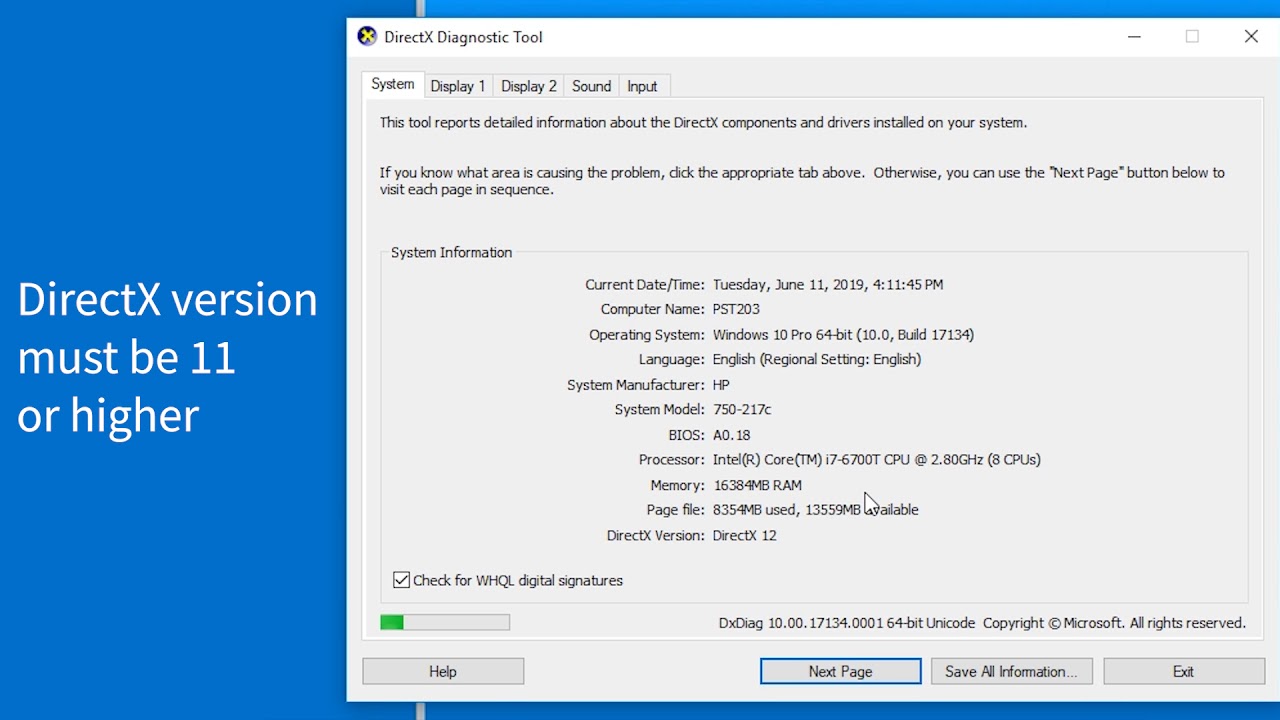
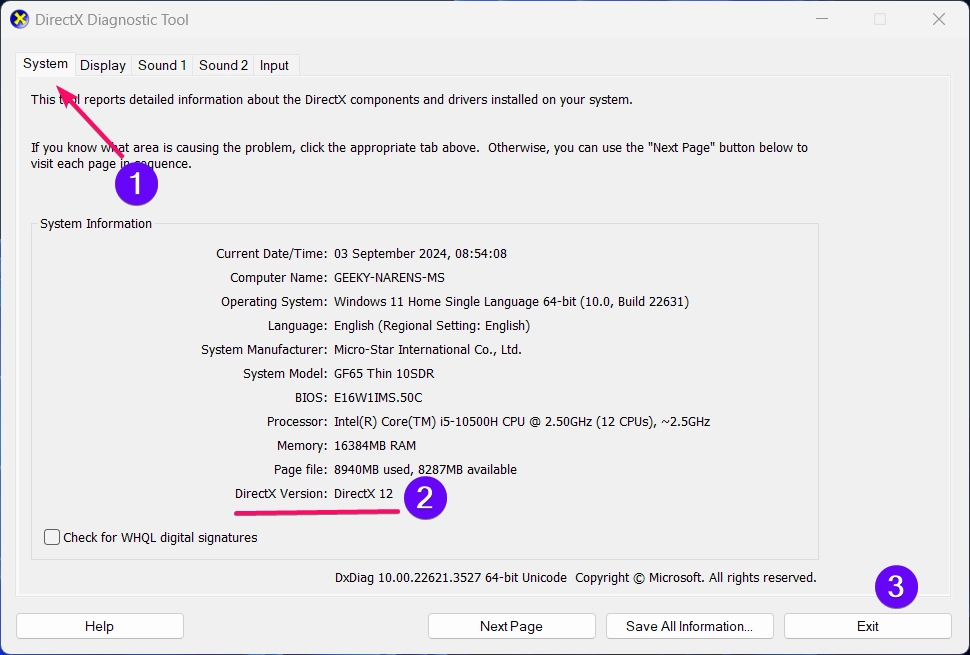
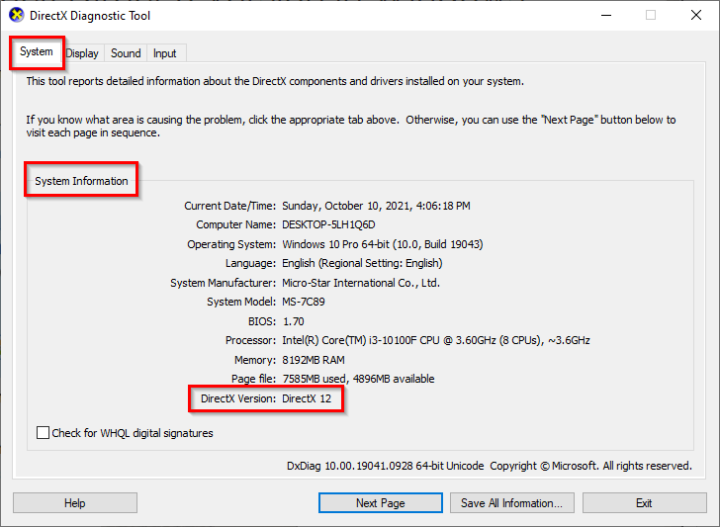
Once you're in the DirectX Diagnostic Tool, click on the System tab and look for the DirectX version number. It should be listed at the bottom of the screen. And, voilà! You'll know exactly what version of DirectX you're running. Easy peasy, lemon squeezy!
Now, you might be wondering, why do I even need to know my DirectX version? Well, my friend, it's because some games and apps require specific versions of DirectX to run properly. So, if you're having trouble getting a game to work, checking your DirectX version can be a great troubleshooting step.
In conclusion, figuring out your DirectX version is a breeze, and it can be a super helpful tool in getting the most out of your gaming and app experiences. So, go ahead, give it a try, and level up your tech game! You got this, and you'll be smiling all the way to a smoother, more awesome computer experience!