
First, make sure your Mac (2012 or newer) and the other device (iPhone, iPad, or another Mac) are within about 30 feet of each other. Also, both devices should have Bluetooth and Wi-Fi turned on—though no need to connect to a network; AirDrop creates its own little bubble.
Now, open Finder on your Mac. In the sidebar, you’ll see “AirDrop” listed under “Favorites.” Click it, and a window pops up showing nearby devices. If you don’t see it, go to the top menu: Go > AirDrop. Simple, right?
At the bottom of the AirDrop window, you’ll see a setting that says “Allow me to be discovered by:” with options like “Everyone” or “Contacts Only.” Choose “Everyone” if you’re in a hurry or at a coffee shop, but switch to “Contacts Only” for privacy. Pro tip: keep it on “Everyone” for a minute, then switch back—it’s like rolling out a red carpet.
Sharing a File in Three Seconds Flat
Here’s where the fun begins. Right-click on any file—say, a recipe photo or a work document—and hover over the “Share” menu. Select “AirDrop,” and a little radar icon scans for devices. When your friend’s iPhone appears as a glowing tile, click it.
The recipient gets a notification asking them to accept or decline. If they accept, the file flies over in seconds, no wires or passwords needed. It’s almost too easy—like cheating at life, but in a good way.
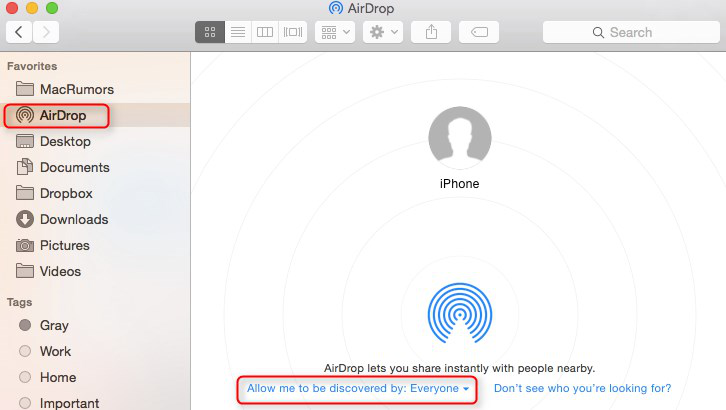 How to AirDrop Files from iPhone to Mac Computer – iMobie
You can also drag and drop files directly onto a person’s icon in the AirDrop window. If you’re feeling dramatic, pretend you’re launching a secret drone strike with a double-tap on the trackpad. (Your files will think it’s cool, trust me.)

