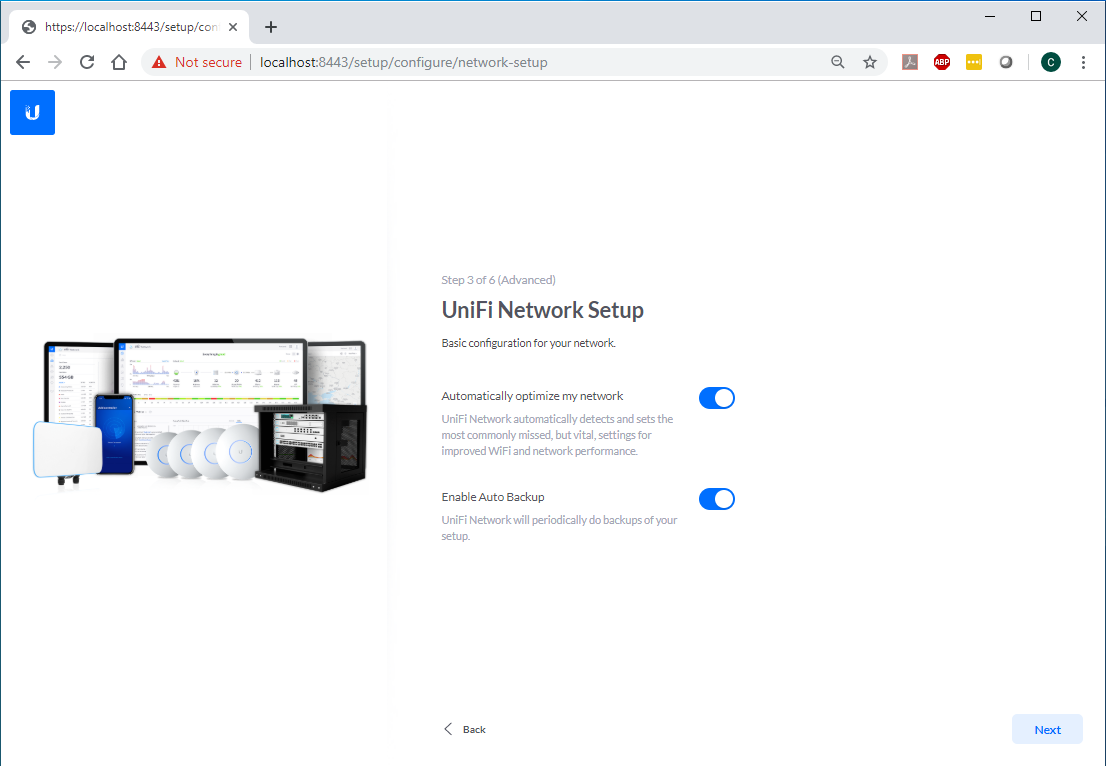
Your Unifi AP is smart, but it’s not a mind reader. Under “Settings” > “Radios,” you can pick which channels it uses. If you live in an apartment building thick with Wi-Fi signals—like a soup of 2.4 GHz interference—choose a less crowded channel. Use a Wi-Fi analyzer app (free on phones) to see what’s least used. It’s like picking a urinal in a crowded men’s room: aim for the emptiest, and you’ll have a better experience.
Set the transmit power to “Medium” for most homes. “High” might blast through walls but can also overwhelm your device’s tiny antenna. Think of it like shouting at a friend across a table—they hear you fine, but if you yell, they just get annoyed. Medium is the sweet spot. And if you have multiple APs, let the controller handle “Fast Roaming” so you don’t drop calls while walking from the kitchen to the couch. Yes, that’s a real problem for people who take meetings in their pajamas.
Adopting the AP in Real Life (A Quick Test)
After you click “Apply Changes,” grab your phone. Turn off Wi-Fi, turn it back on. You should see your new SSID. Connect to it. Run a speed test. If it’s faster than before, do a little dance. If it’s slower, don’t panic—you might have the channel set to 11 when your neighbor’s on 11. Go back to the controller and switch to channel 1 or 6. It’s like musical chairs, but for radio waves.
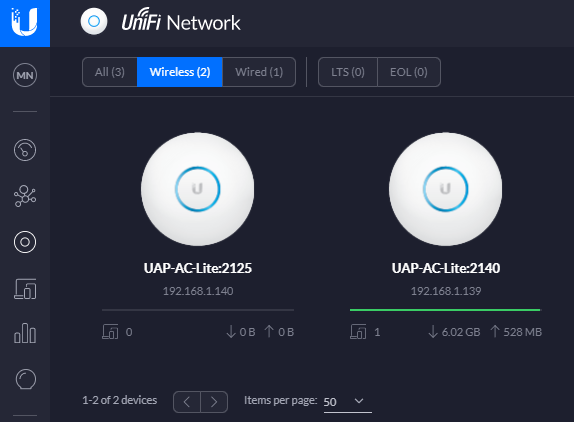 How to Setup a Ubiquiti UniFi AP-AC-Lite Wireless Access Point on Your
And here’s a pro tip: the Unifi Controller also shows you client statistics—like who’s hogging all the bandwidth (looking at you, Netflix user #3). You can even block devices by MAC address if your teenager’s gaming is ruining your Zoom call. Use this power wisely. Or don’t. I’m not your mom.

