
Real life isn’t perfect. Your spreadsheet has blank cells because your coworker “forgot” to input Tuesday’s sales. Or maybe you have a text entry like “N/A” because someone thought it was funny. Don’t panic.
The standard AVERAGE function is a polite soul. It ignores empty cells and text because it knows you’re just trying to survive. It’s like a friend who pretends not to notice when you spill salsa on your shirt—very forgiving.
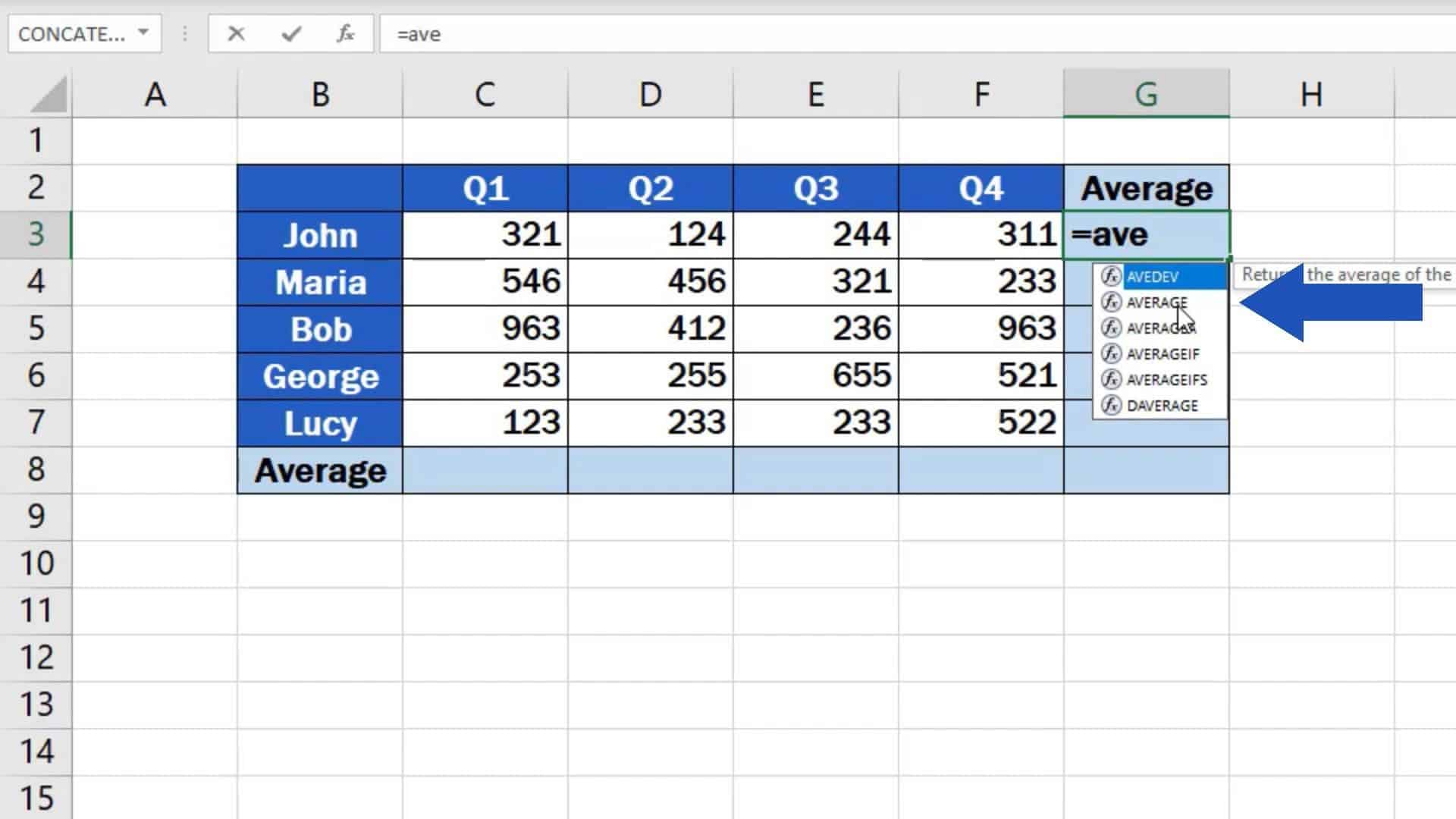 How to Calculate the Average in Excel
But here’s the twist: if you have a zero in a cell, Excel counts that as a real number. A zero drags your average down faster than a lead balloon. So only use zeros if you actually mean “this person ate no pizza,” not “I forgot to write the number.”
The Quick Status Bar Hack (For Lazy People Like Me)
Maybe you don’t want to type a formula. Maybe you’re in a rush and just need to know if your budget is a disaster. Highlight the numbers, and glance at the bottom-right corner of your Excel window.
See that little status bar? It shows you the sum, the count, and—you guessed it—the average. No typing, no effort. It’s like finding a twenty-dollar bill in your winter coat. Pure joy.
Right-click that status bar if you want to customize what it shows. You can add the minimum, maximum, and even a count of numbers. It’s your data dashboard, and you’re the captain of a very boring ship.

